
How to Install and Set Up Xtreme HD IPTV on Your Device
Welcome to the official setup guide for Xtreme HD IPTV. If you recently purchased a plan and you are wondering how to install it on your Firestick or any Android powered device, this step by step guide will walk you through everything. This tutorial is optimized for beginners and will help you understand every part of the iptv tv setup process with clean instructions and clear explanations.
Our goal is to make your installation smooth and fast. You will learn how to activate your device, how to prepare it for external applications, and how to enter your Xtreme HD IPTV subscription details correctly. Once you complete the setup, you will be ready to enjoy live channels, premium movies, and full series libraries through your iptv tv service.
Follow the instructions below to ensure a perfect installation and start streaming instantly.
Install and Set Up Xtreme HD IPTV for iptv tv Users
To help you get started quickly, we have organized this iptv tv guide into three clean sections. Each section is designed to take you from zero to fully installed without confusion.
You will begin by enabling the setting that allows your Firestick or Android device to install applications from outside the official store. After that, you will learn how to install the Downloader application, which you will use to get the Xtreme HD IPTV app. In the final section, you will follow simple instructions to install the app and activate your subscription.
By separating everything into clear steps, this iptv tv guide makes installation simple even for complete beginners.
Step 1: Enable Unknown Sources
Start by preparing your Firestick for the Xtreme HD IPTV iptv tv installation:
Go to the Settings icon on your Firestick home screen.
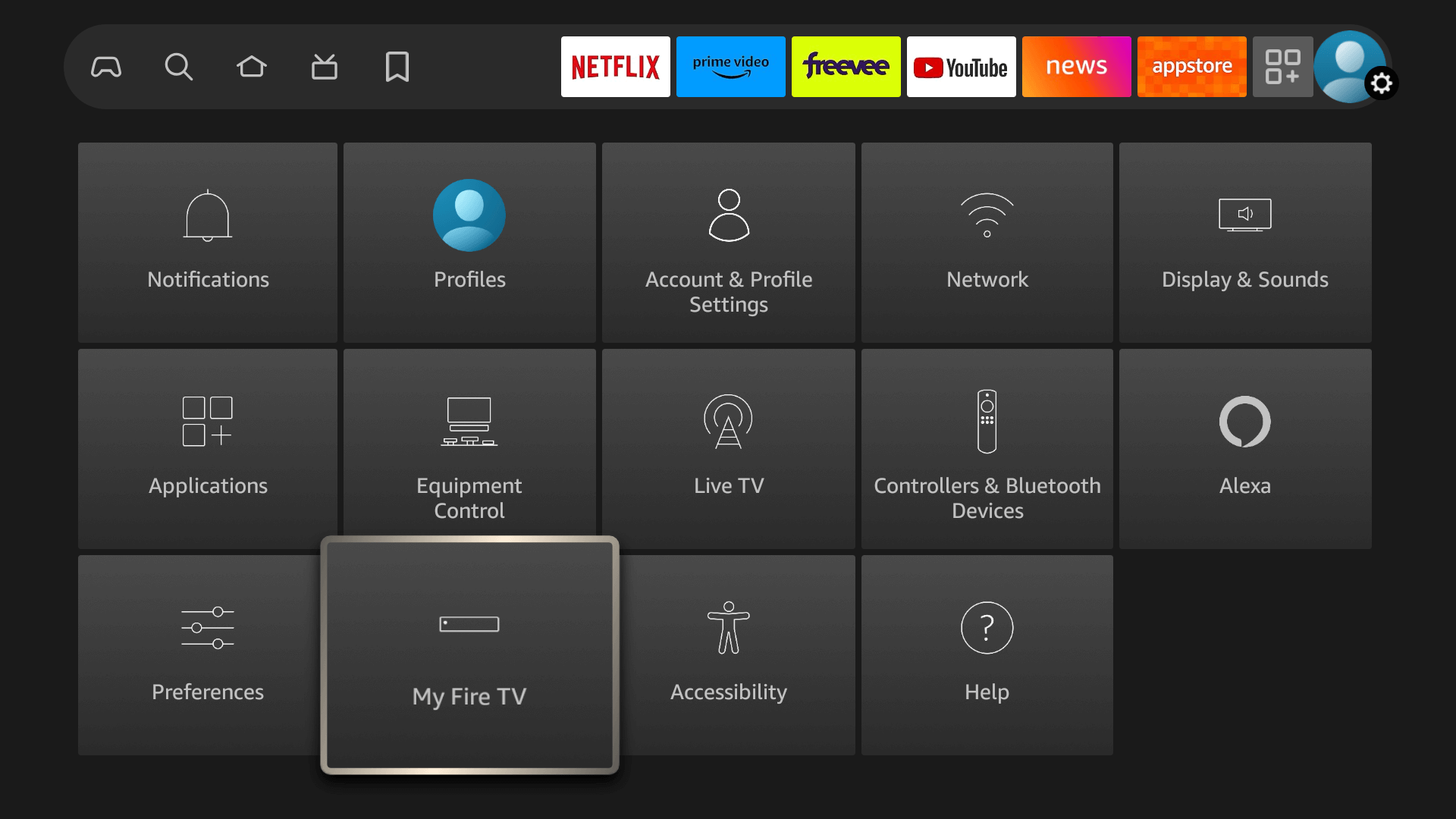
- Scroll to select ‘My Fire TV’ > About > highlight Fire TV Stick 4K Max (or any other depending on the device you own) and Press the OK button 10 times to enable Developer Options.
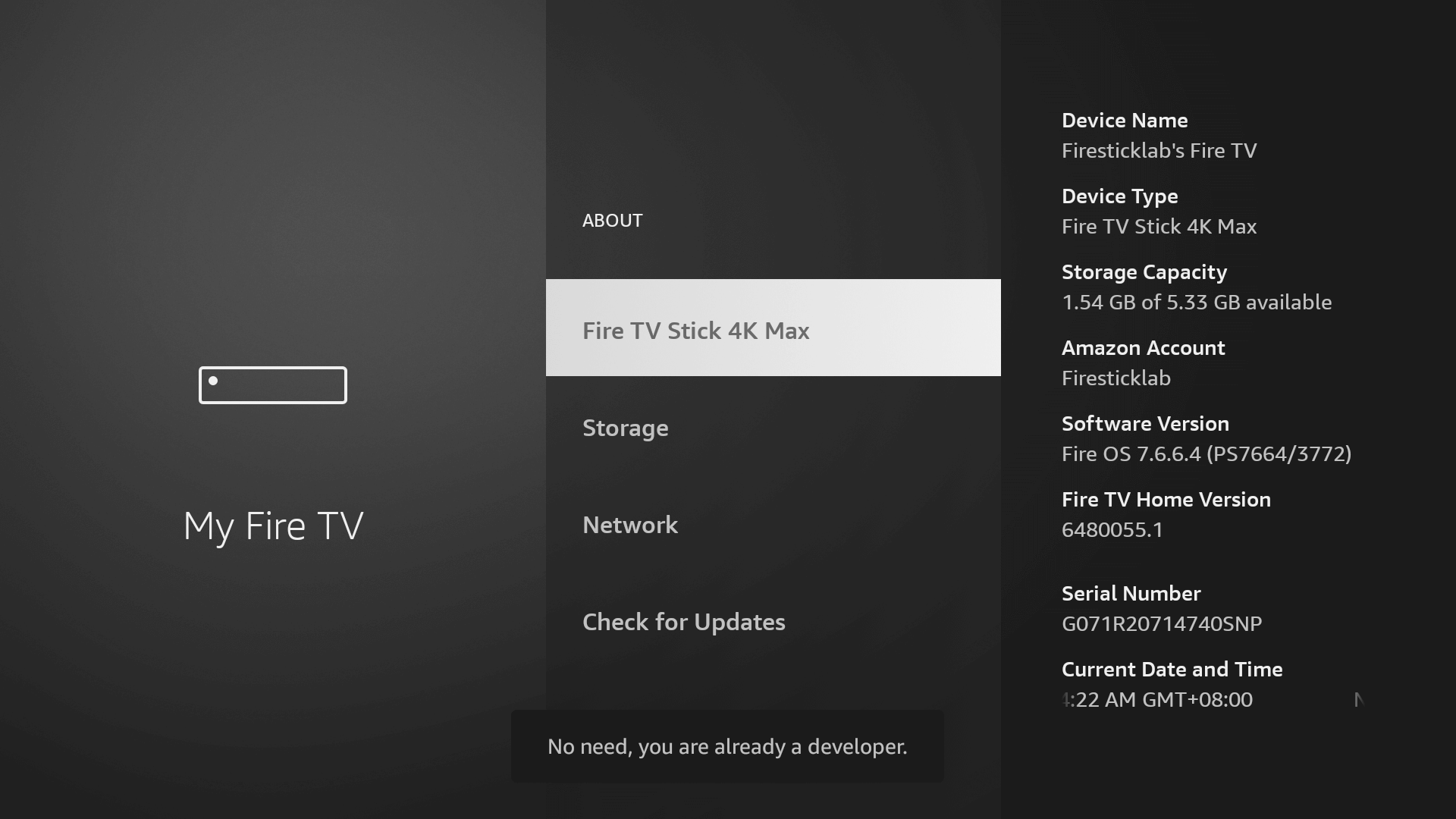
The first step is now completed and let’s move to the next Step to Get the Downloader, after getting the app we have to Enable the Unknown Sources for Downloader app in the next guide.
Step 2: Install the Downloader App on Your Firestick
To continue your iptv tv setup with Xtreme HD IPTV, you need the Downloader application. This tool is essential for Firestick users because it allows you to install apps that are not listed in the Amazon App Store. Downloader gives you direct access to APK files by entering a simple URL, making it the easiest and safest way to install your Xtreme HD IPTV app.
The interface is straightforward and built for beginners. Once installed, Downloader becomes your main gateway for downloading and running any external app required for your iptv tv service. It expands your entertainment options far beyond what comes preloaded on your device.
Follow the steps below to install the Downloader app instantly on your Firestick. Android device users can also find it on the Google Play Store.
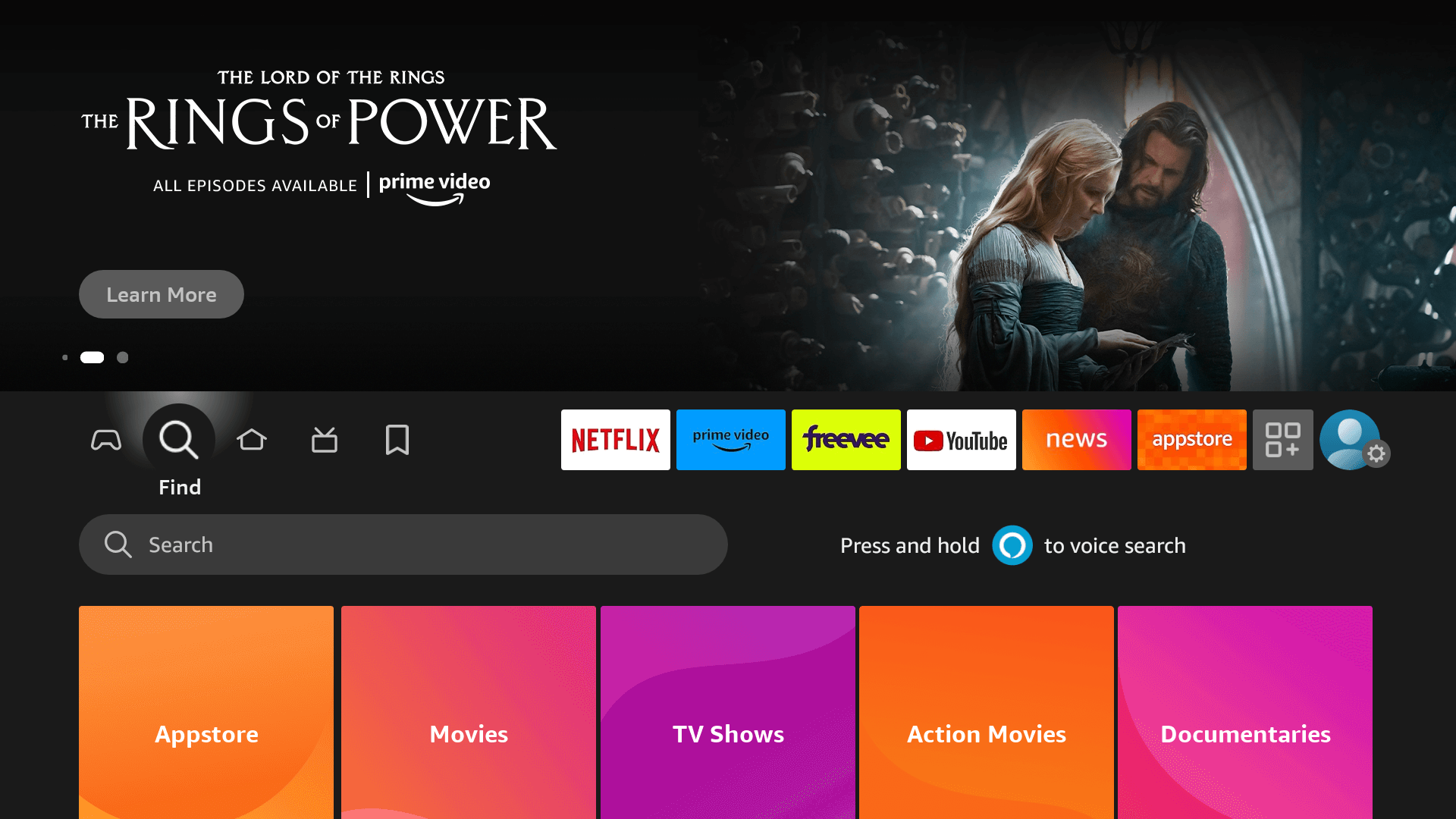
- Go to Home Screen and from the Menu click on Find or Magnyfying Glass icon.
- Type the “Downloader” using the On–Screen keyboard.
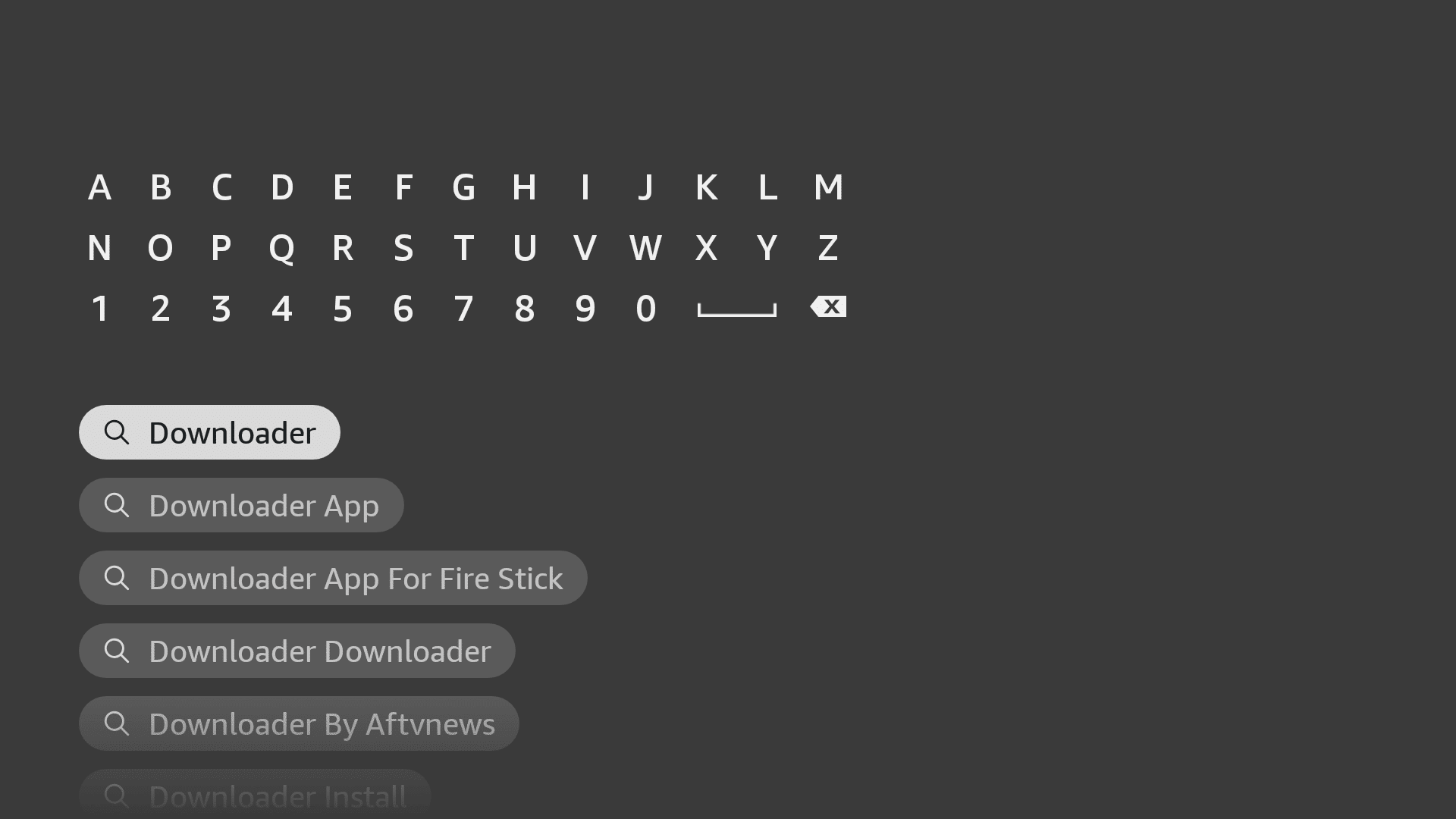
- The Downloader has the Orange Background so ensure you are Downloading the Correct app.
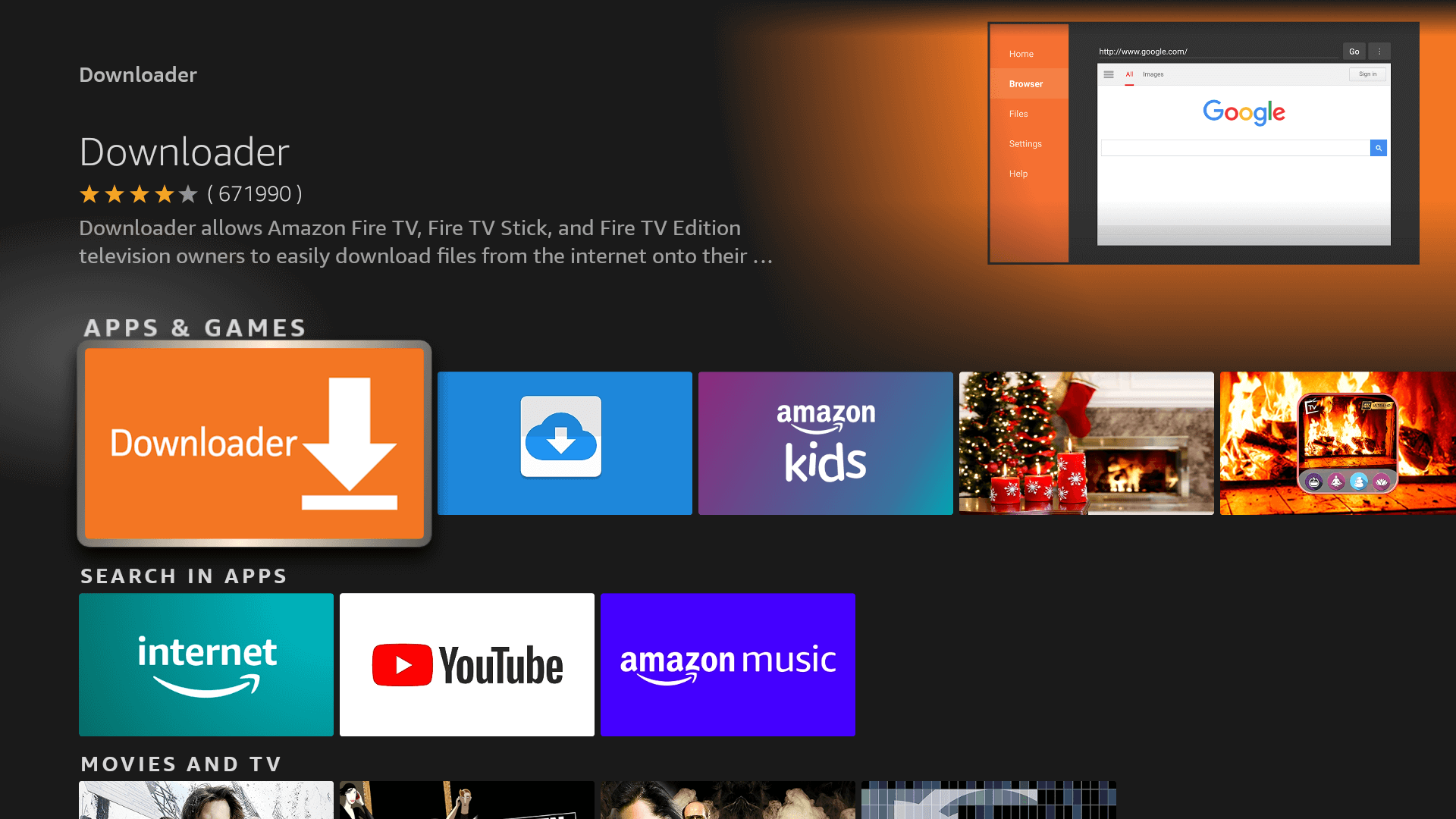
- From the next screen, click on the Download button.
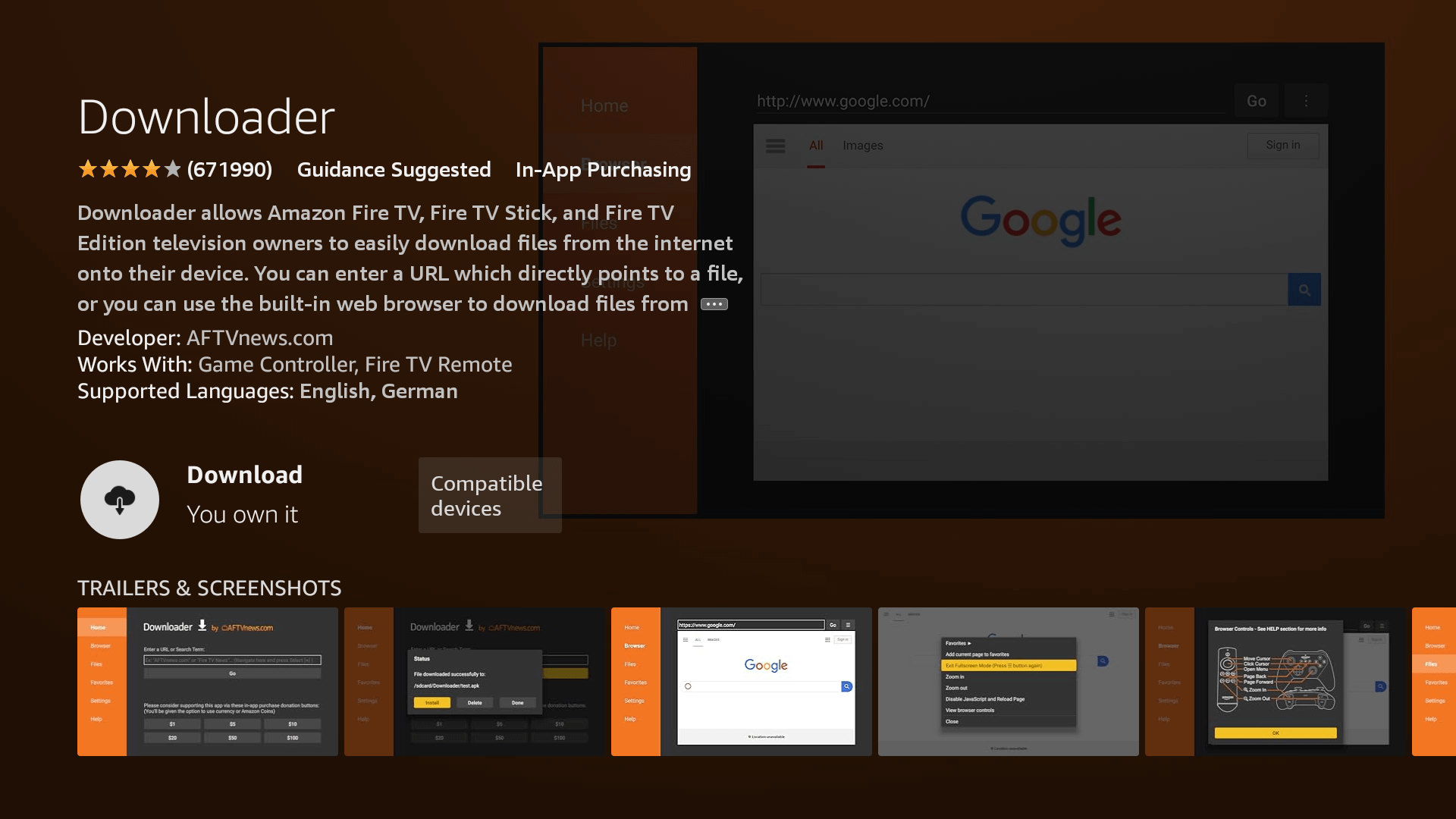
- Once installed, do not open it yet!
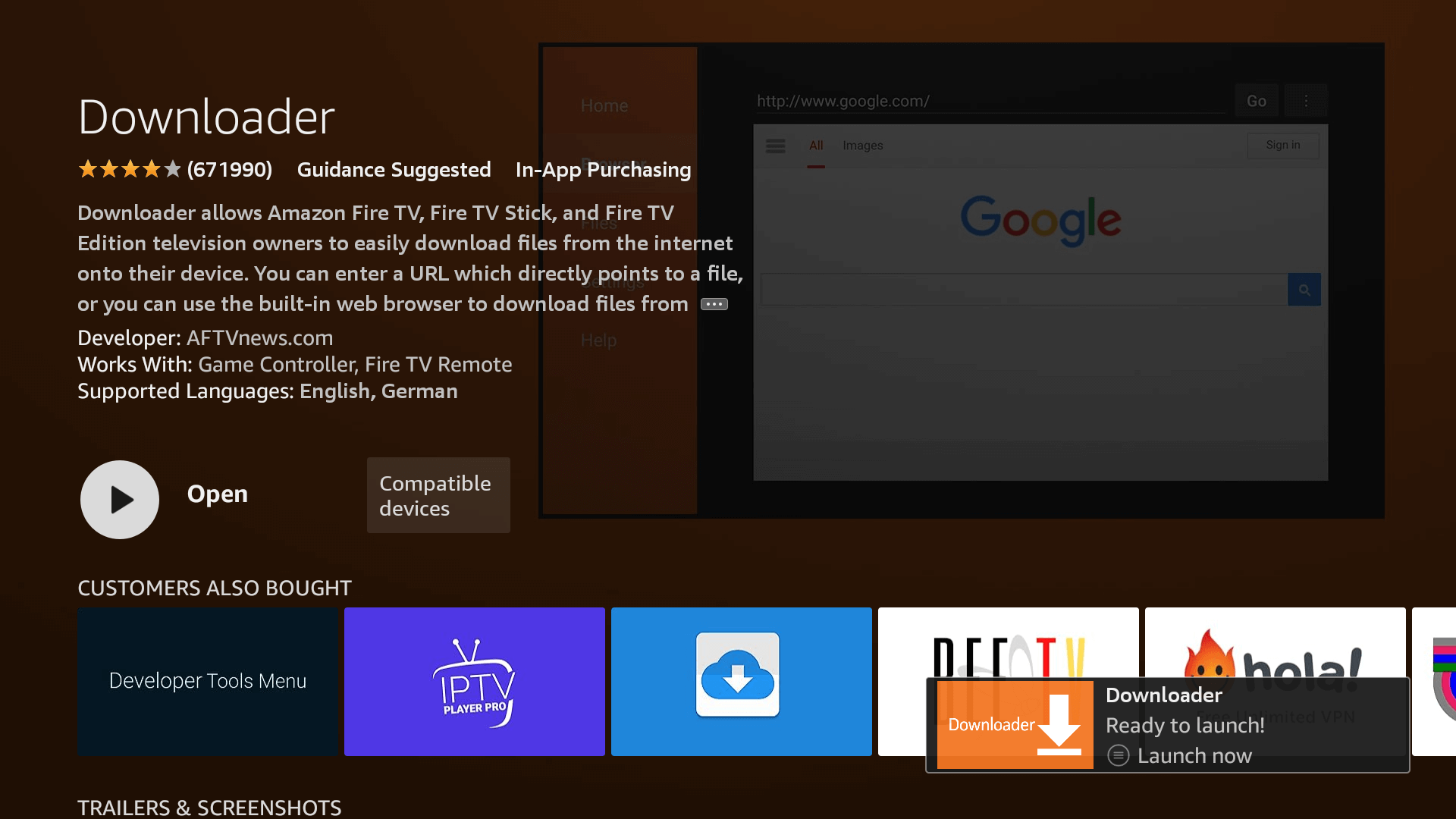
Enable Unknown Sources 1.2:
To ensure the Downloader app can install Xtreme HD IPTV on your device, follow these steps:
1. Navigate to your device’s Settings > My Fire TV > Developer Options within the My Fire TV menu.
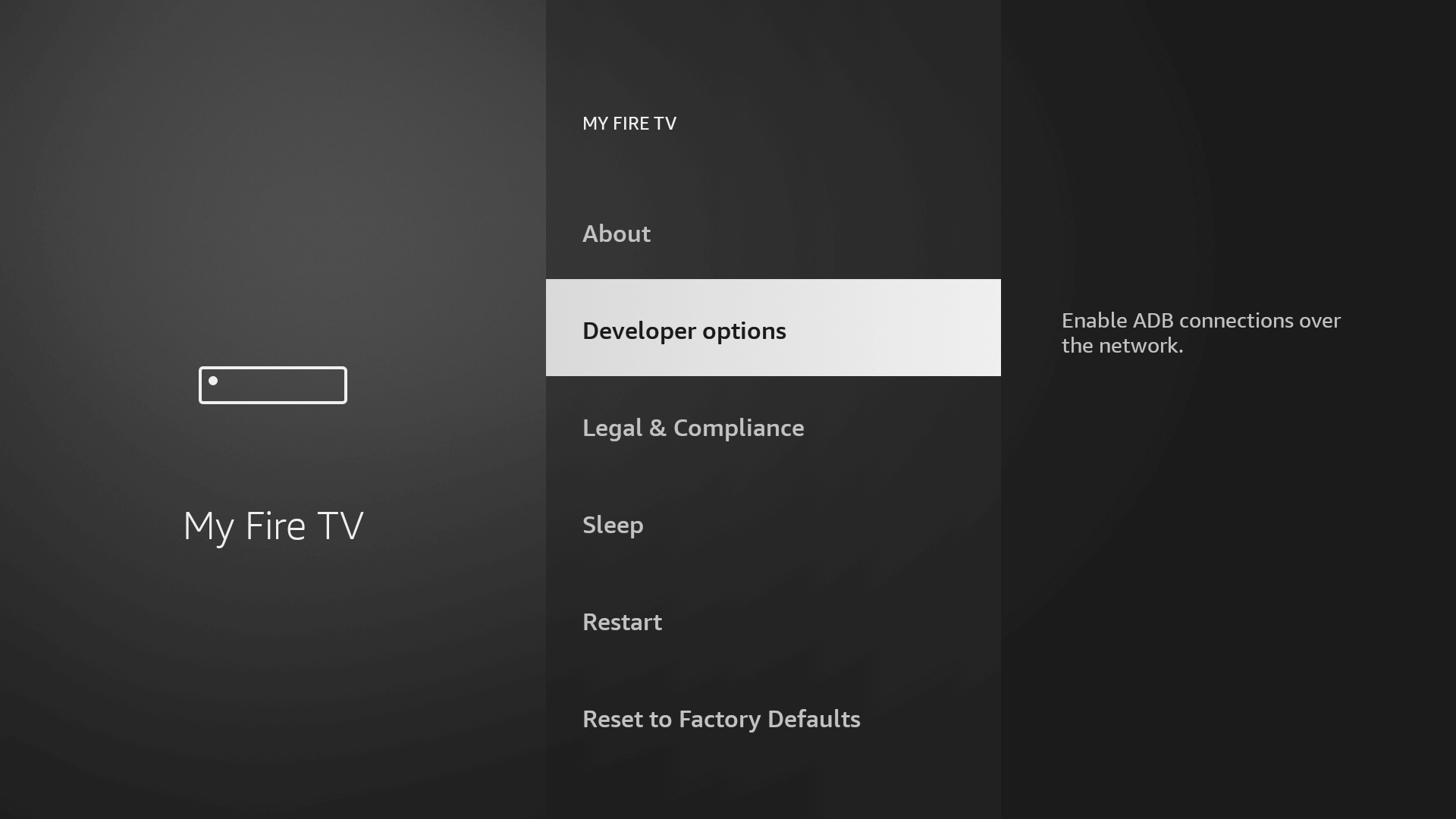
2. Find ‘Install Unknown Apps‘ or ‘Apps from Unknown Sources‘ and select it.
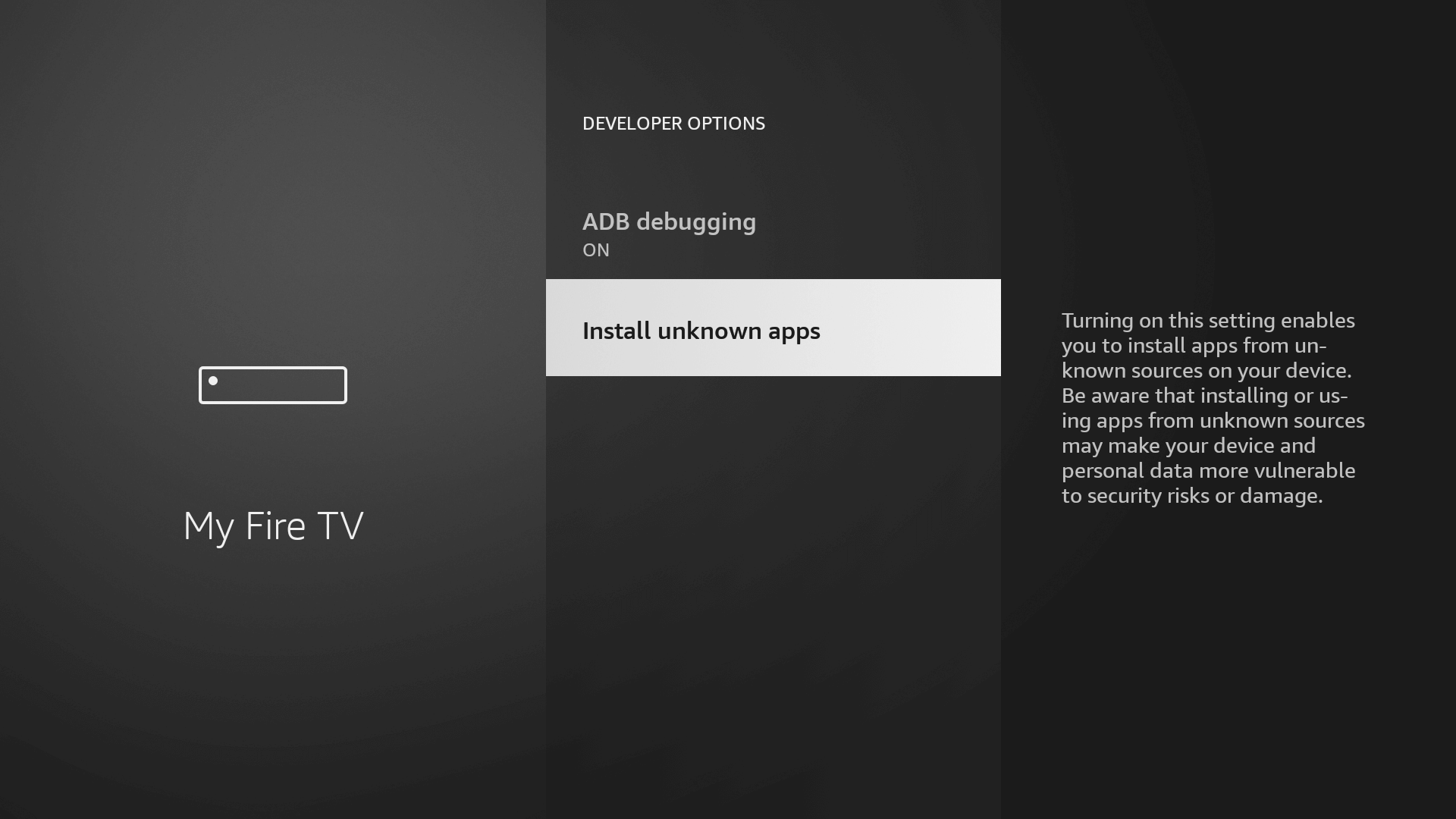
3. You’ll see a list of apps; locate ‘Downloader.’ It will display as ‘Off.’
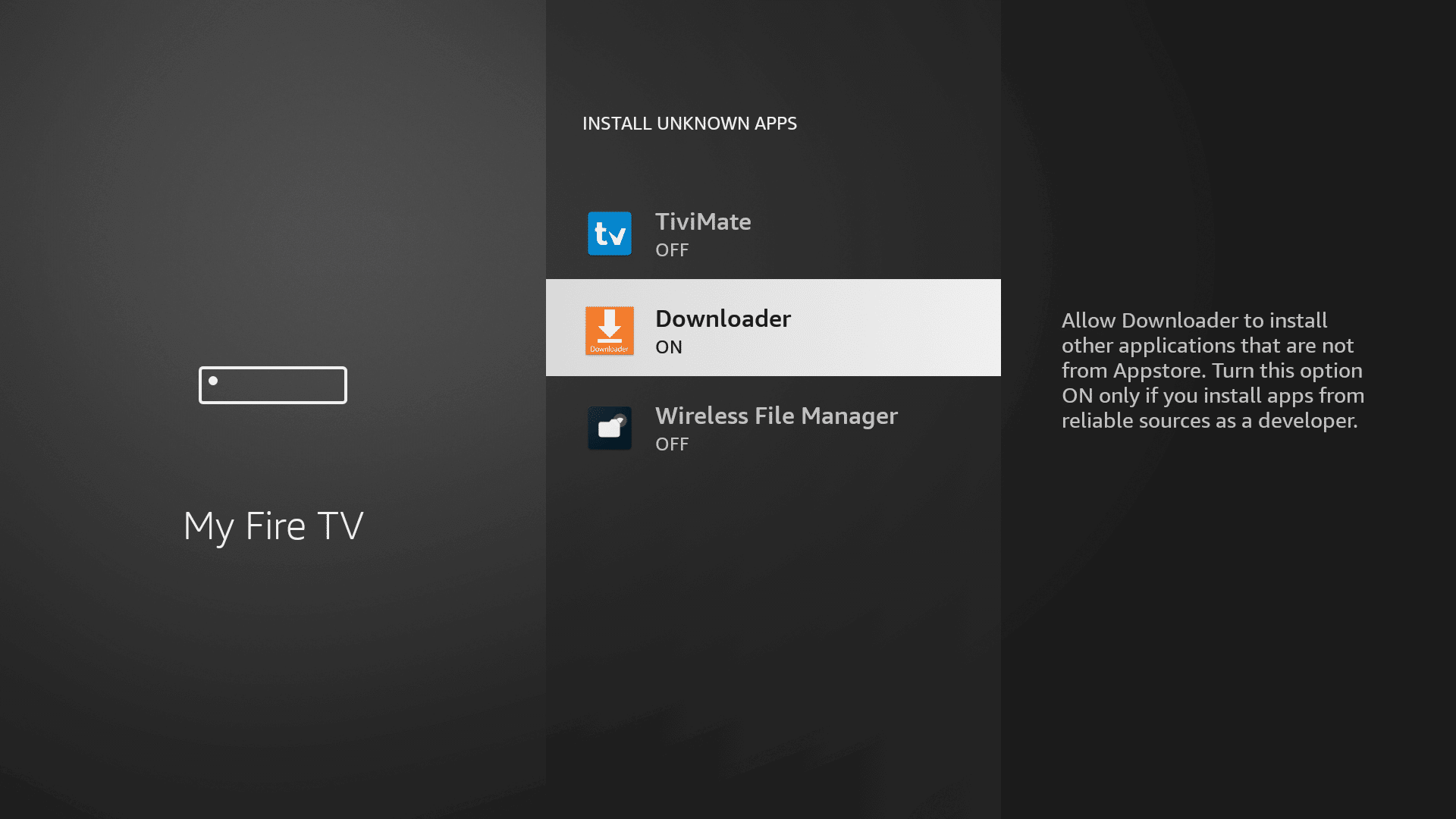
4. Hover over the ‘Downloader‘ app and press ‘OK‘ on your remote to toggle the option to ‘On.’
By enabling this setting, you grant the Downloader app permission to install third-party applications, like Xtreme HD IPTV, which are not available through the official app store.
Step 3: Download and Set up Xtreme HD IPTV
Now that we have enabled Unknown Sources for Downloader, we are finally ready for the last step to get the Xtreme HD IPTV app and set up the app, check the below steps with screenshots and avoid making any errors.
- Go to the Home Screen and click on the Applications icon next to the Profile.
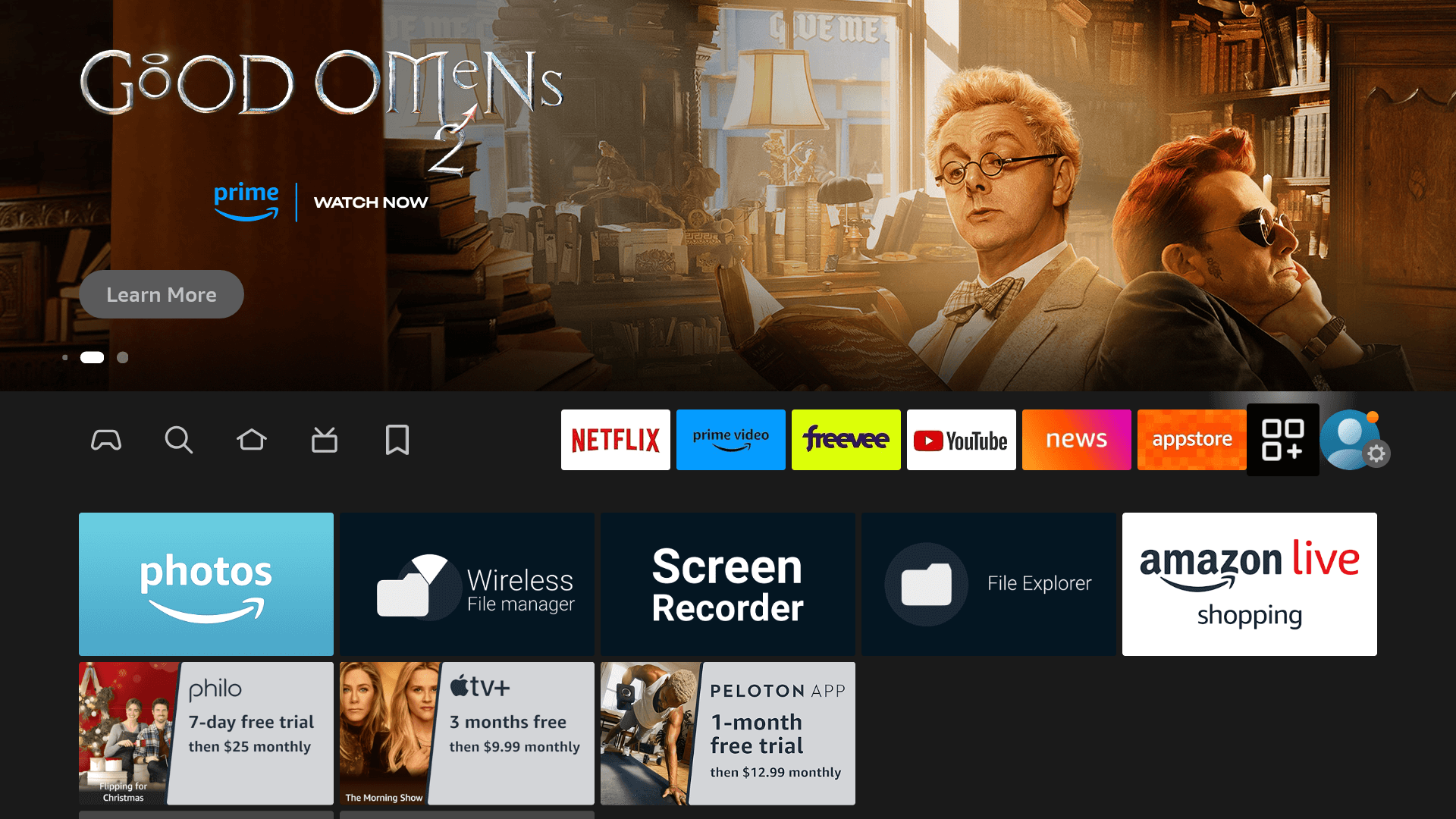
- Scroll down and launch the Downloader app.
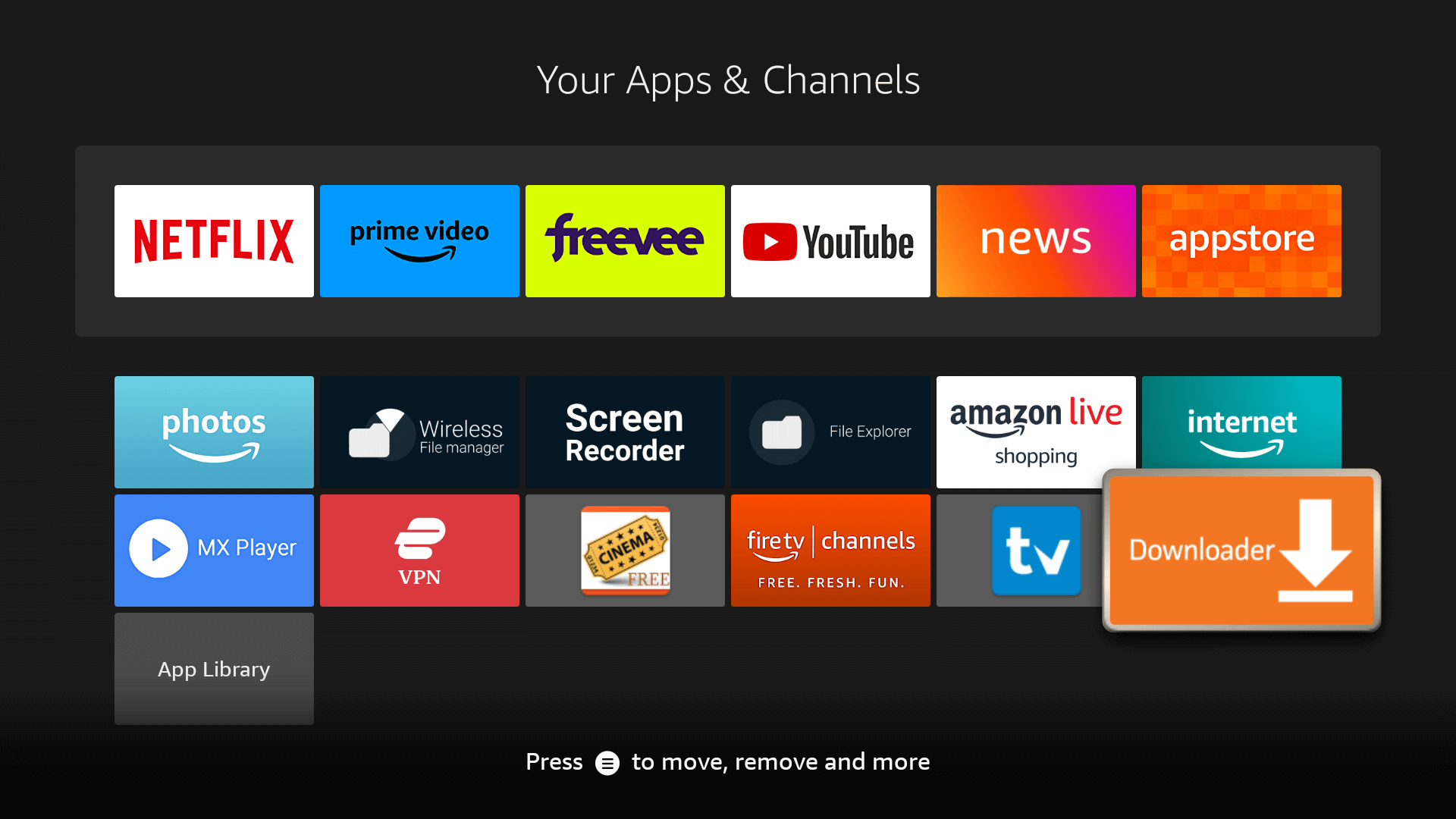
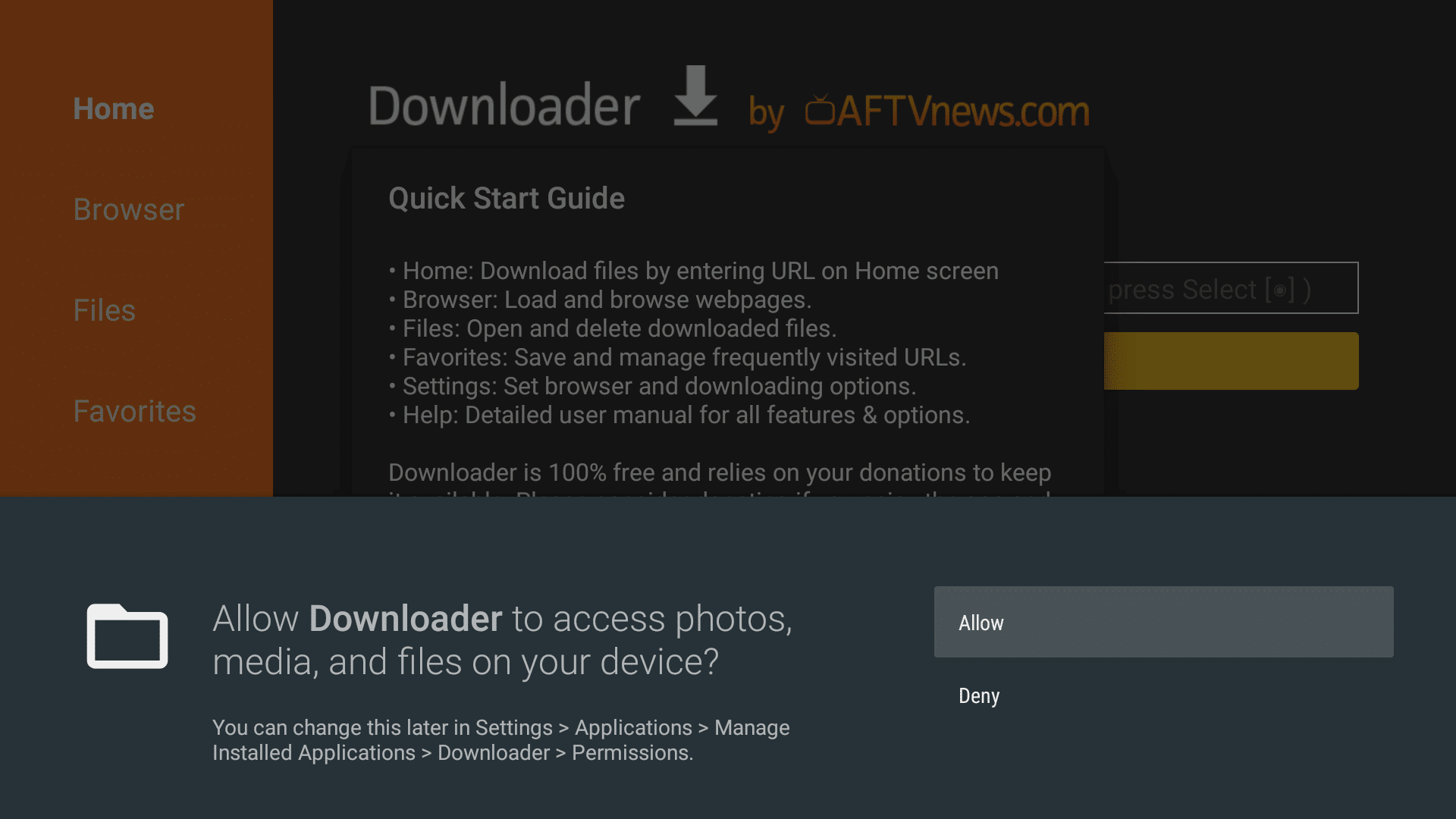
- Click Allow when asked permission to access Media, Files, etc.
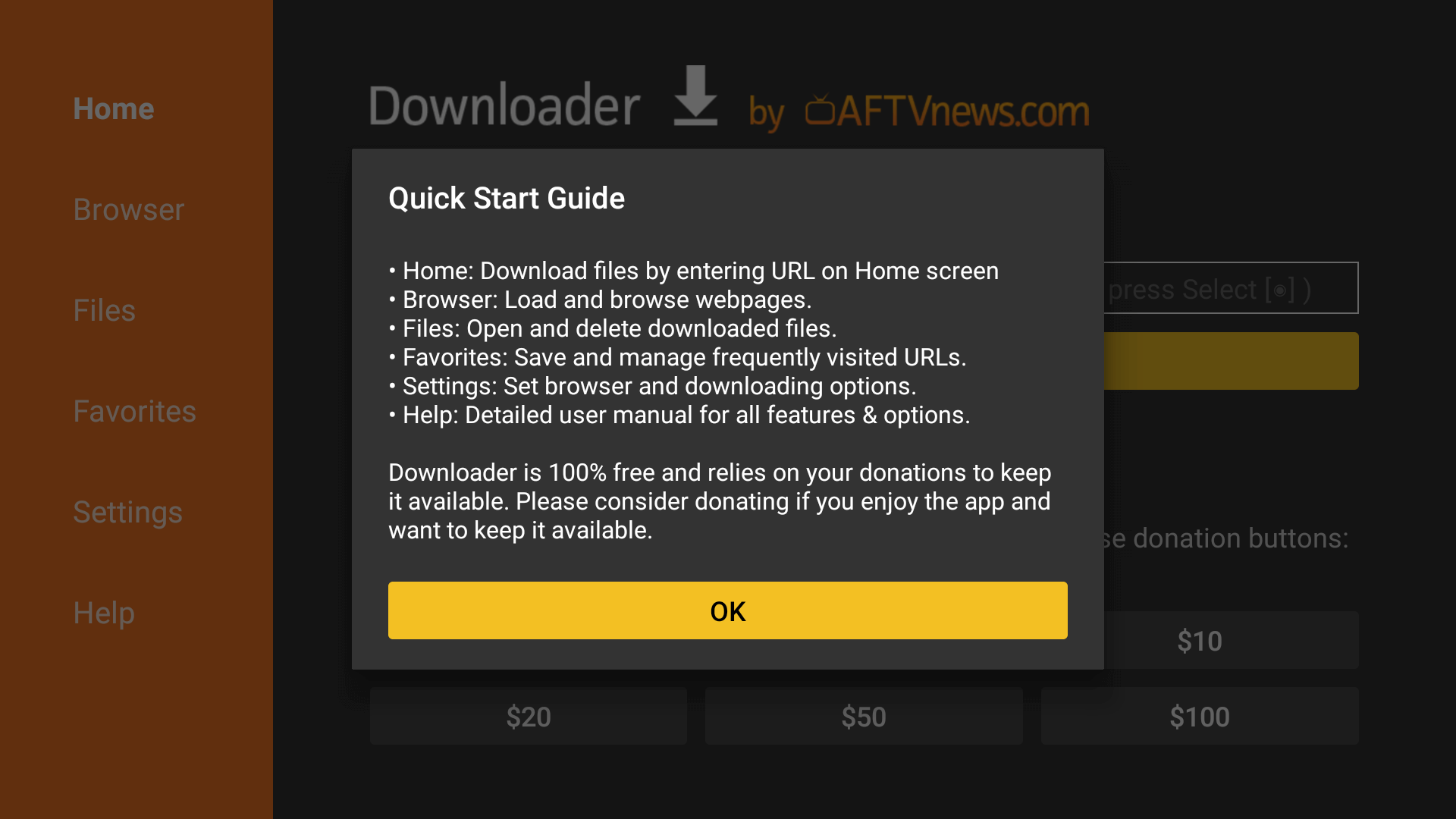
- Hit Got it when the Quick Guide Menu pops up.
New Code for XtremeHD APP -> 7433190
- Now click on the Empty Box and using the keyboard type this Code: 7433190
- Wait there for 5 seconds and it will automatically Redirect and Download the app.
- Downloading will take some time, don’t click any key on the remote to avoid interruptions.
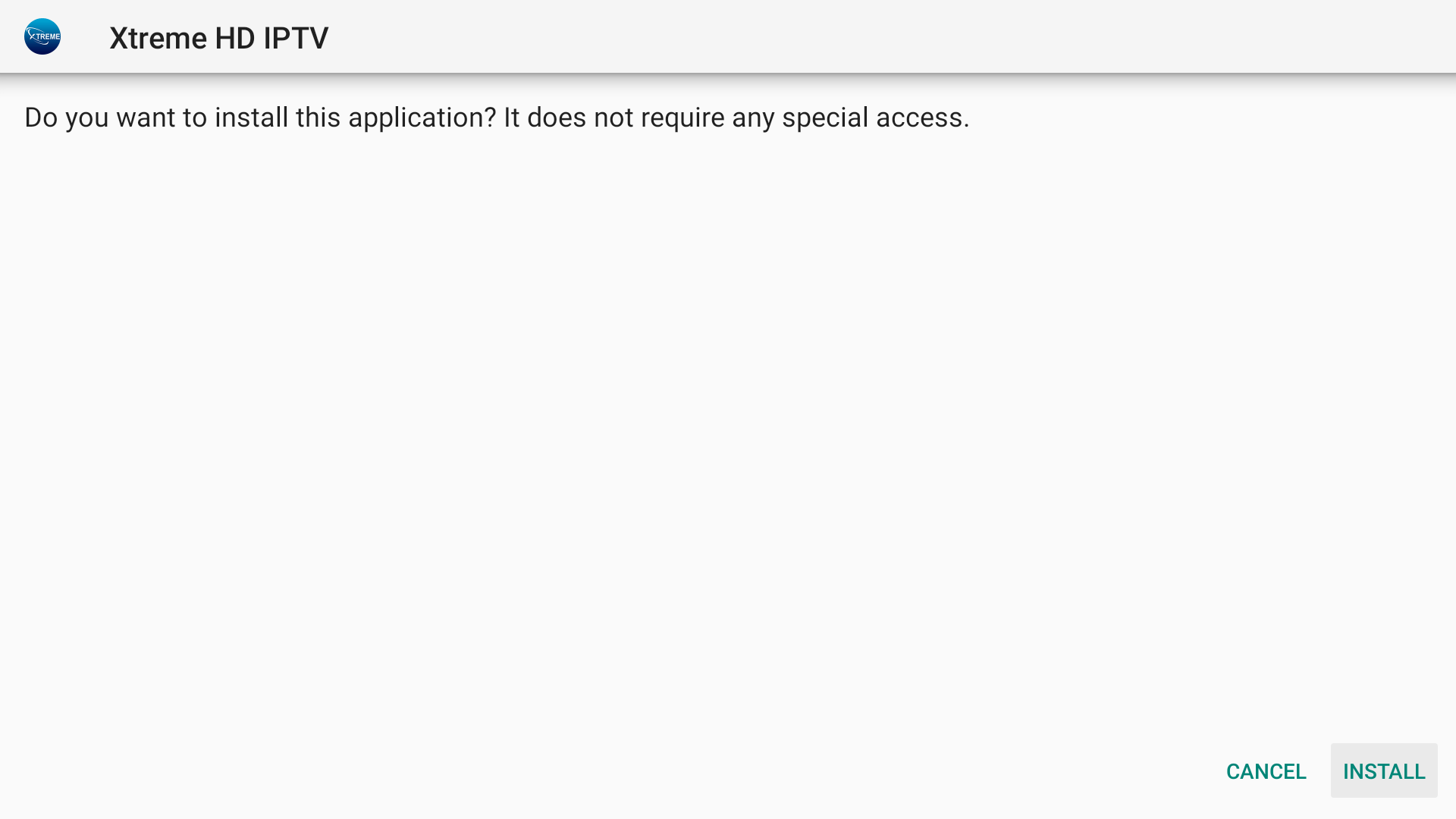
- Once the app is downloaded, the Installation screen will appear, hit Install from the bottom right.
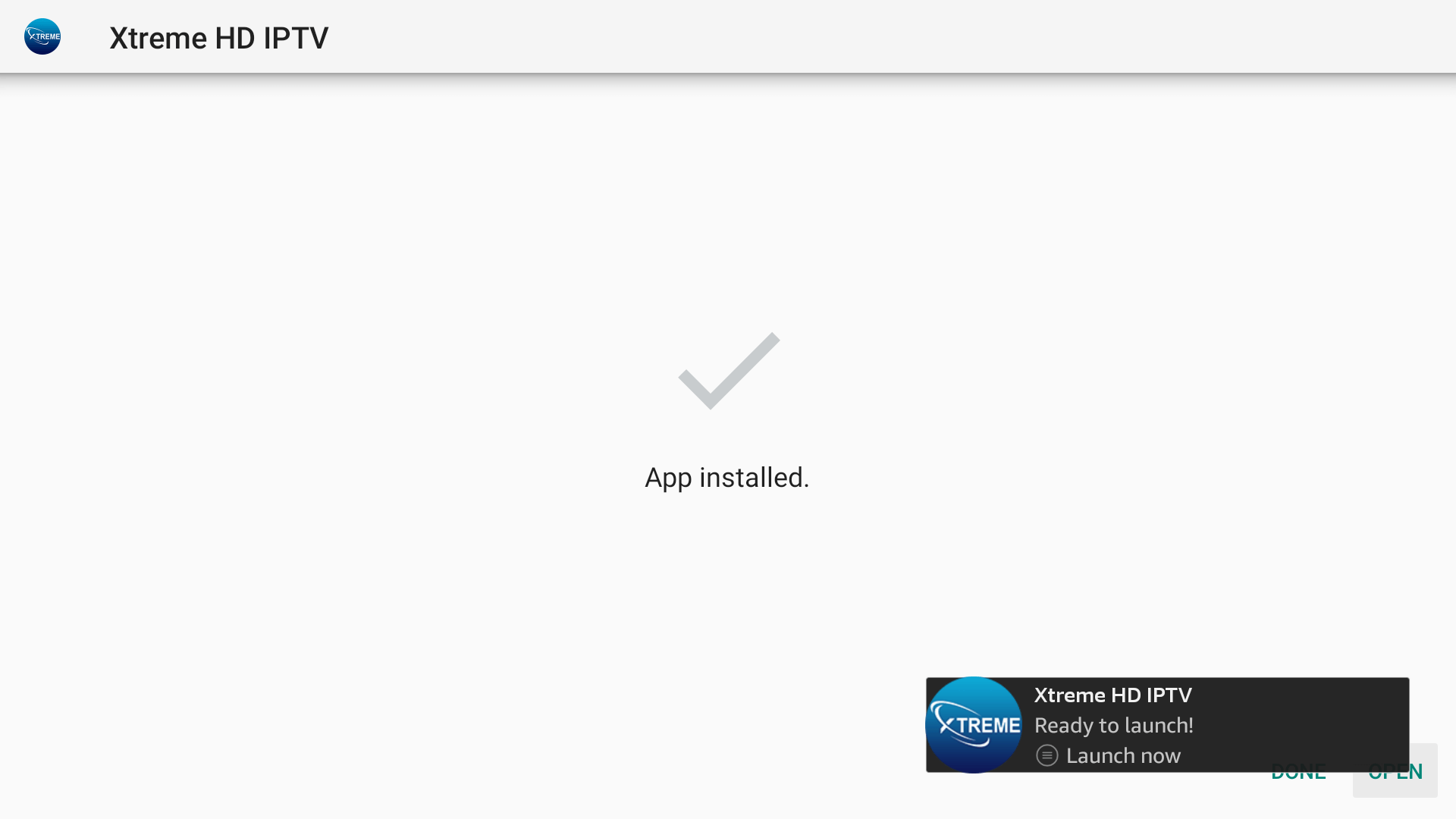
- Wait for a while and the installation will take 5 – 10 seconds, once completed click on Hamburger Menu or Open to launch the app.
Download and Set up Xtreme HD IPTV 3.1:
Installation of Xtreme HD IPTV has been completed successfully, now comes the main part which is how to log in. Basically, it is simple and easy because with our app you do not have to put the Portal URL, our app automatically connects you to the best server based on your location.
Make sure that you have your login details with you, if you haven’t received them yet, then kindly check your Inbox or Junk Folder. Once you have got the credentials just follow up the following steps:
- When the app is launched you will be asked to choose a Device Type, (it automatically checks the device you are using, if not then check on the device you have) and hit Save.
- On the Next Screen, you will be asked to put in the Username and Password, Connect VPN, List Playlists,
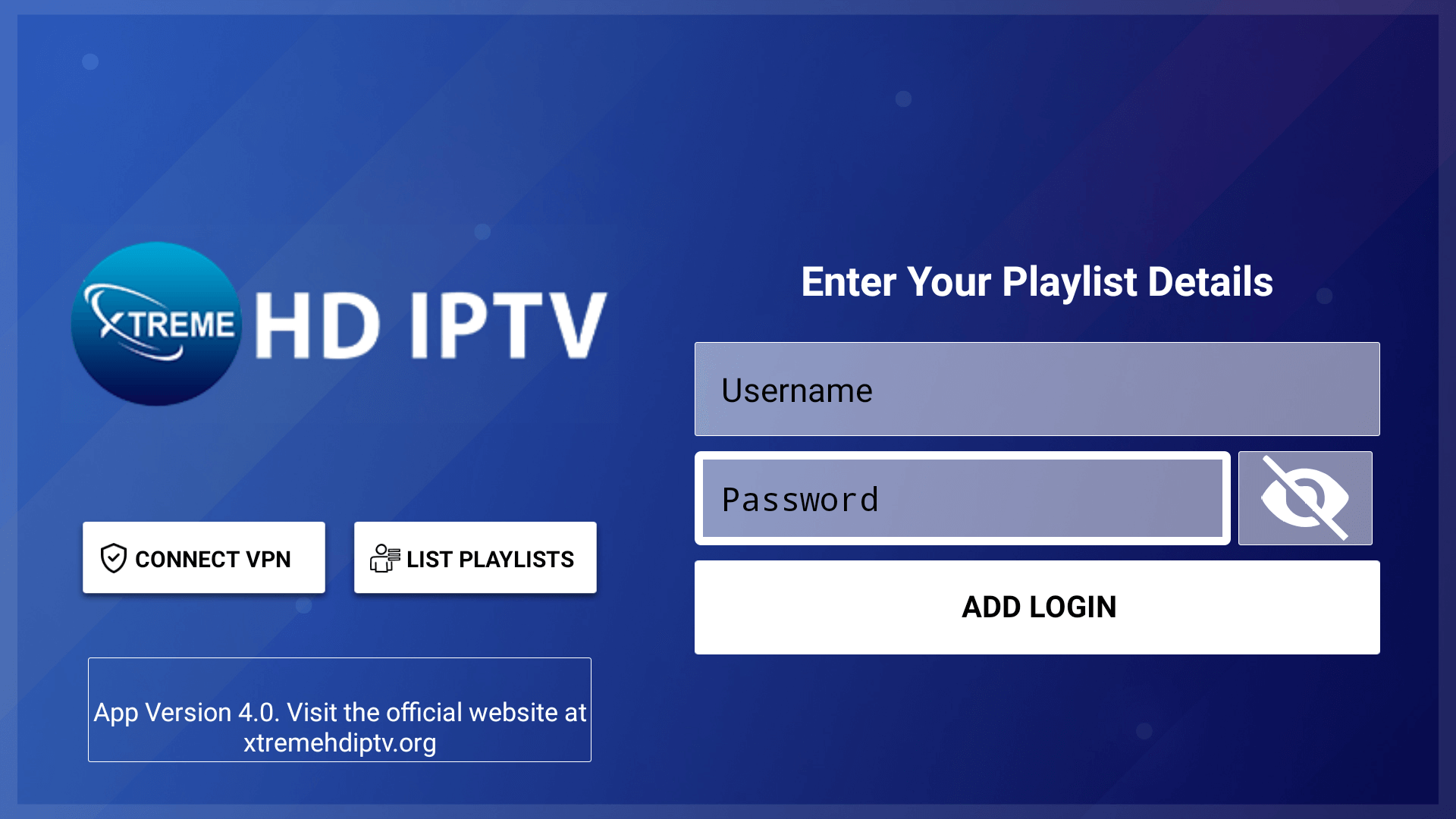
Note: Do not use the Connect VPN option from the App, it is not in use! To Set Up a VPN on a Firestick or Android Device you can check our other article dedicated to that with recommendations for VPN and provide the best Setting to use with VPN.
- Type your Username and Password that we have sent to you and hit the Add Login button.
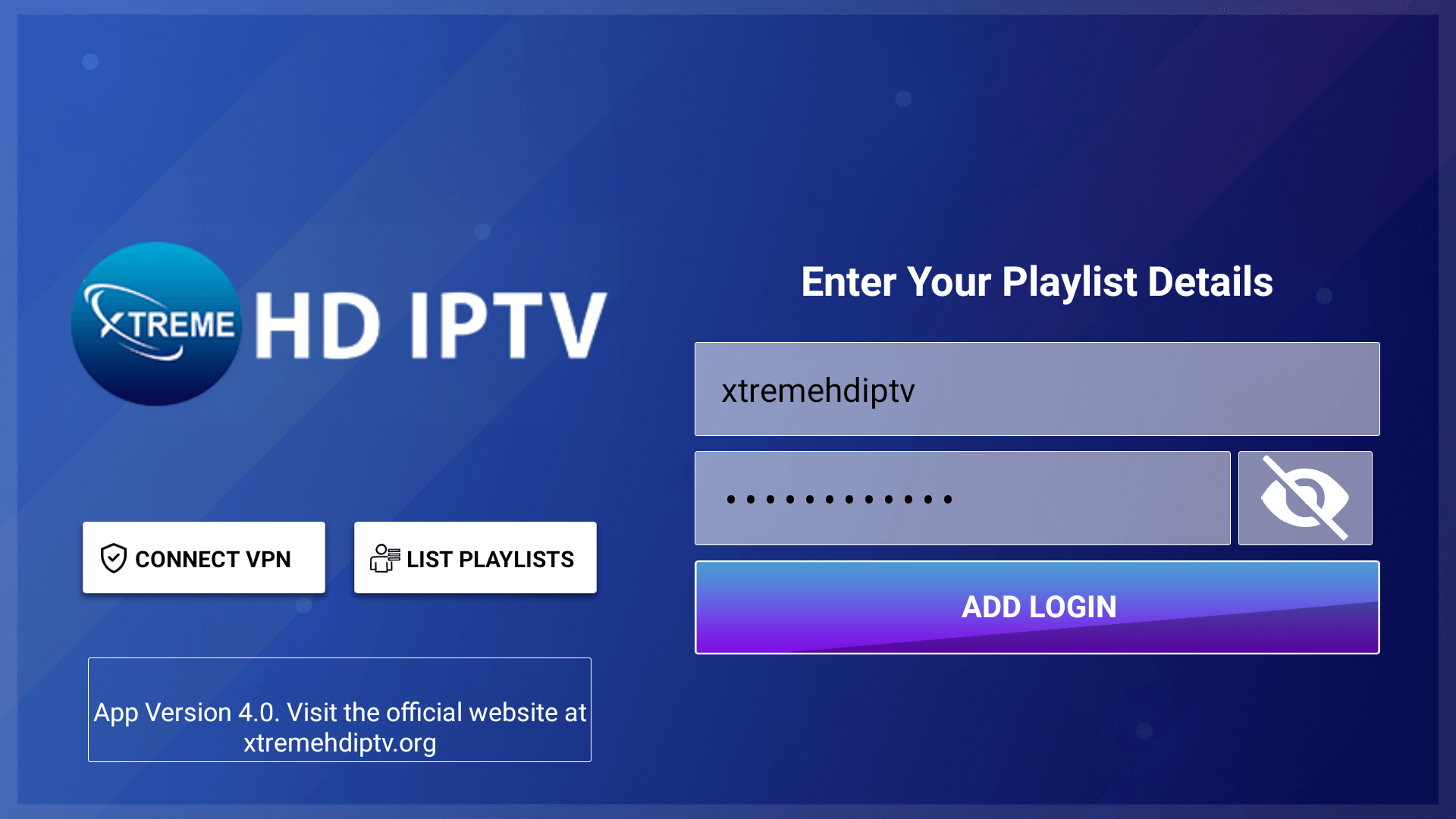
- Now the Playlist will be added, you have to Download each Section Manually, Hover to Live TV, Movies, and Series, and Press OK to Download the content.
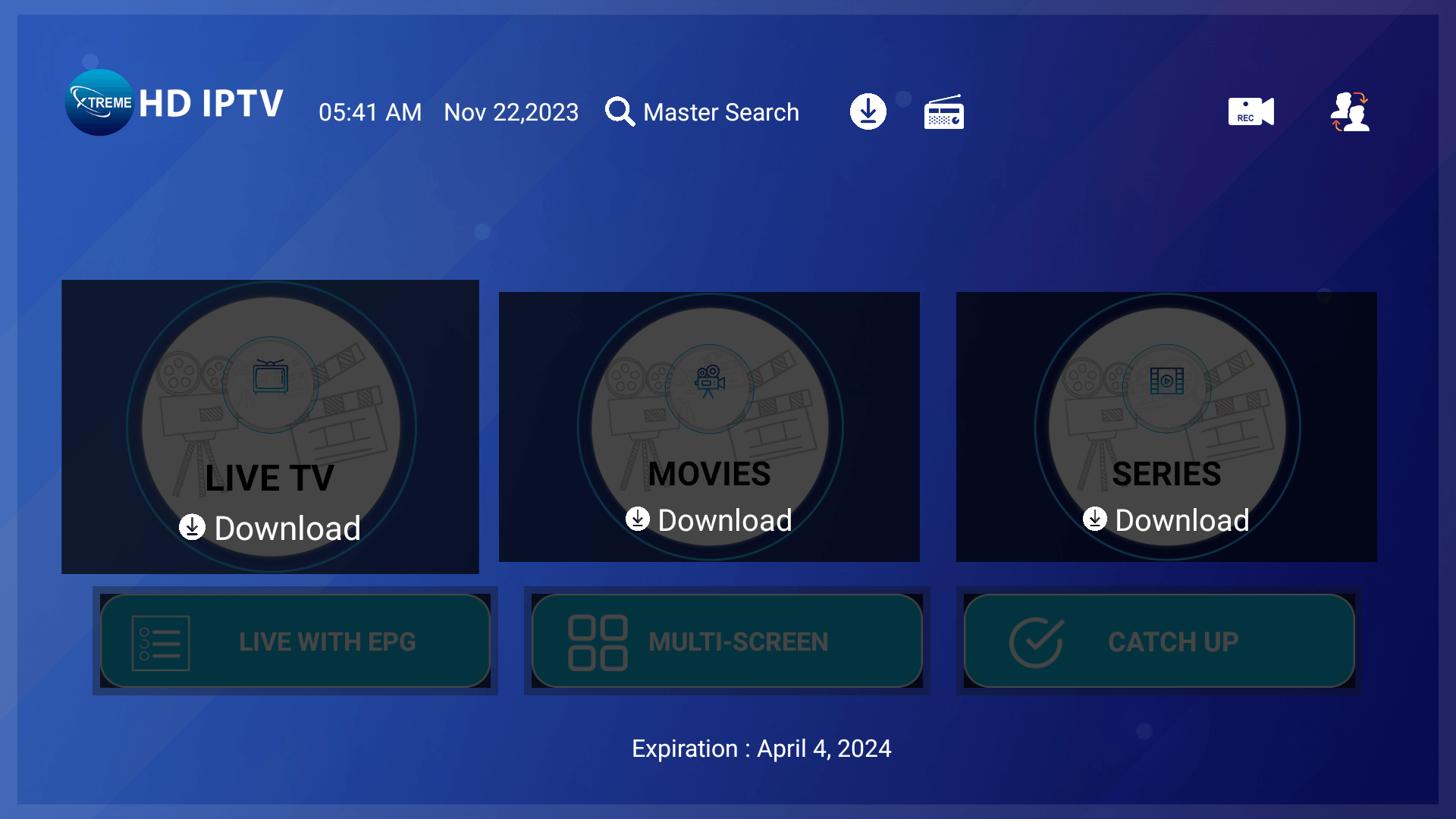
- Once the Content is Downloaded you will be able to access it, so go to Live TV, Movies, or Series.
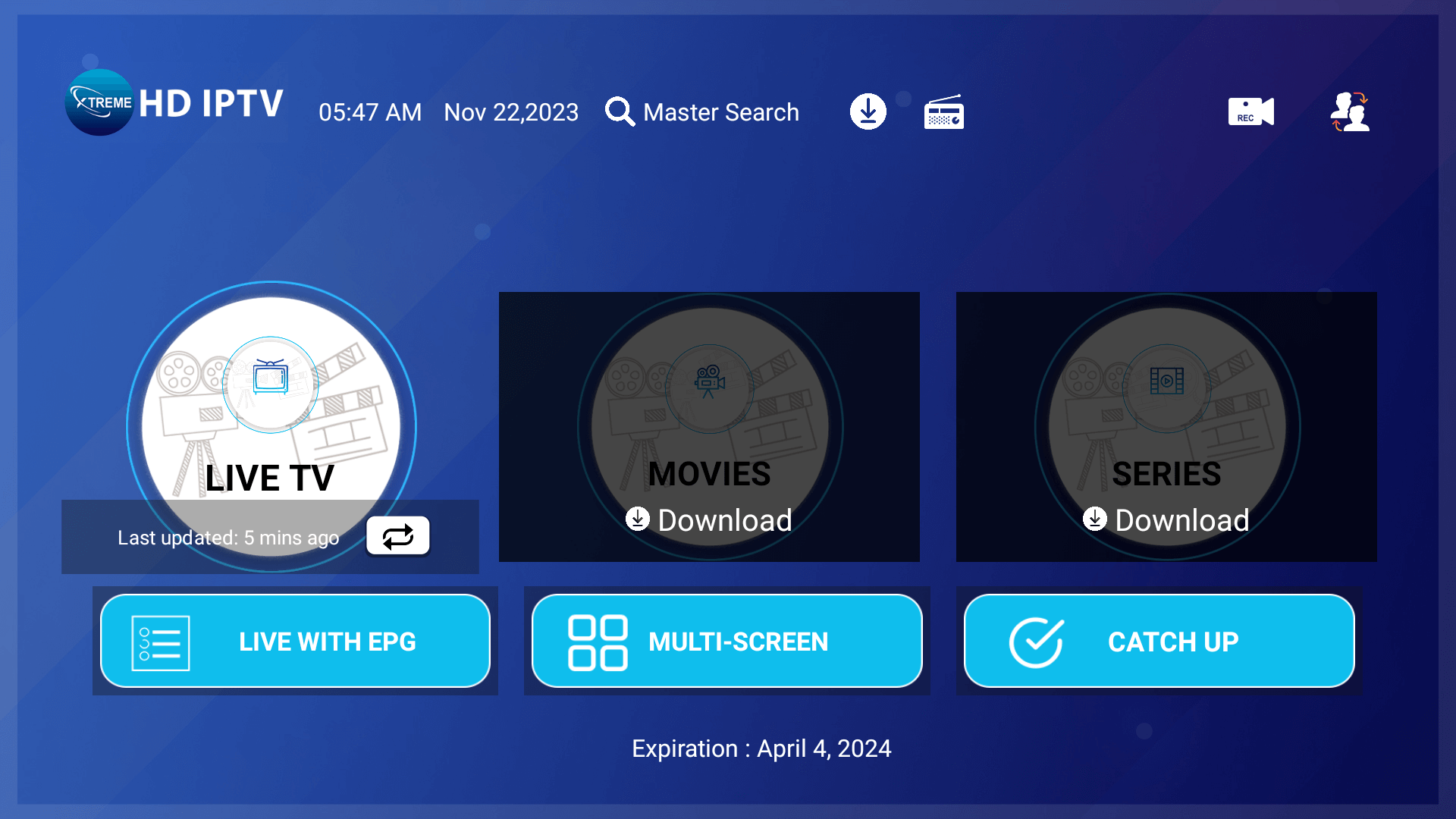
- Now Highlight any Channel that you want to Stream and hit the OK button to Start Streaming.
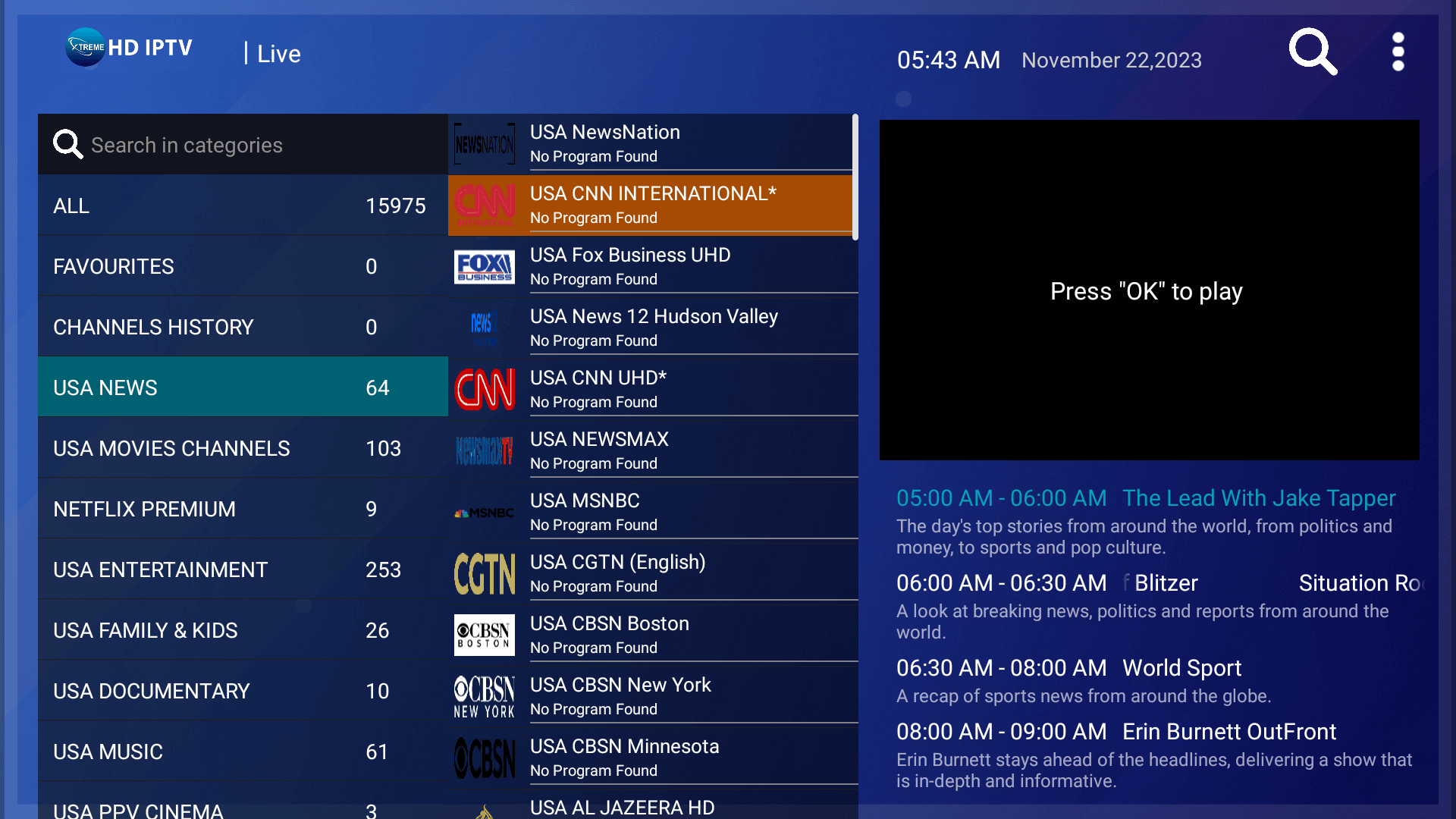
- You can hover over the Screen and hit OK again to open the Full Screen.

Additional Note: Username and Passwords are case sensitive please ensure that you are using the credentials as they are given in the email without making changes on your end.
I hope this helped you out with the setup process and you have enjoyed our IPTV Service. We offer the world’s best IPTV service with over 16,000+ Live TV Channels and 60,000+ Movies and Series.
Xtreme HD IPTV offers Pay-Per-View channels, Live Sports, Movies, News, and almost every category that you wish and the best part is you can stream anywhere in the world with no restrictions!