Learning how to restart Firestick is one of the fastest ways to fix lag, freezing, app crashes, and slow performance on any Amazon streaming device. Many users search for how to restart Firestick because it is a simple maintenance action that clears temporary files, refreshes the system, and restores smooth playback without losing apps or data. This guide explains how to restart Firestick using the fastest remote shortcut, the menu method, and the correct hard reboot technique so you can fix problems instantly in 2026.
Understanding how to restart Firestick is important for every user because the Firestick runs nonstop and can accumulate background processes that slow it down. A proper restart gives your device a clean cycle and often solves Wi Fi issues, app loading problems, and display glitches. By mastering how to restart Firestick through different methods, you ensure your device continues to perform at its best without frustration or delays.
This introduction sets the foundation for the complete guide where you will learn how to restart Firestick step by step using clear instructions suitable for beginners and advanced users. Each method is safe, quick, and designed to help you fix your Firestick in seconds.
Table of Contents
The Fastest Way to Restart Firestick Using the Remote Shortcut
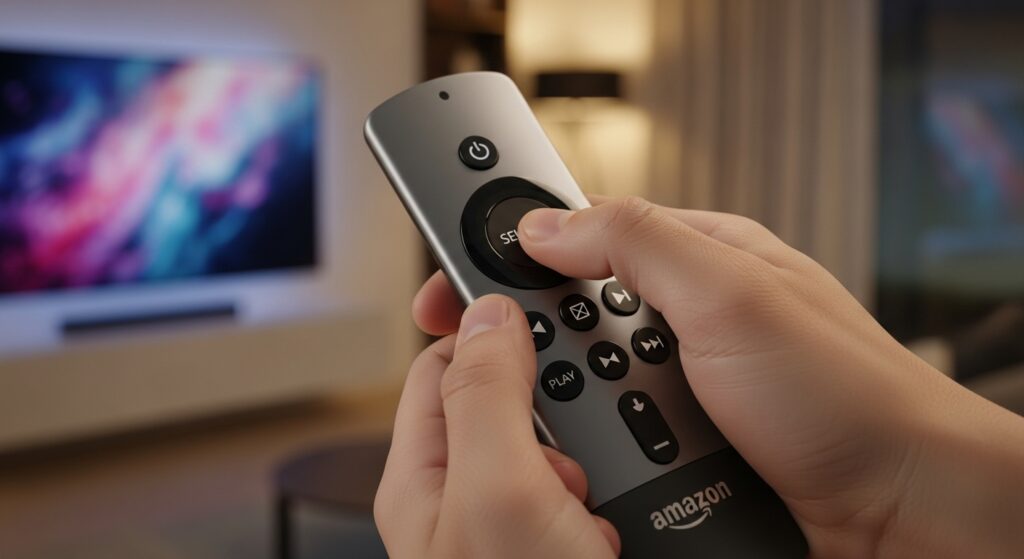
The quickest method for anyone learning how to restart Firestick is the remote shortcut. Amazon created this specific combination to help users restart the device instantly without opening menus or unplugging the power. Since many people search for how to restart Firestick when their device becomes frozen or slow, this shortcut is the fastest solution that works on models like Firestick 4K, Firestick Lite, and Firestick 4K Max in 2026.
Restart Firestick Using Select and Play Pause
This shortcut works on almost every model and is the most popular method for users who want to master how to restart Firestick without navigating settings.
Steps:
- Hold the Select button on your Firestick remote.
- At the same time, hold the Play Pause button.
- Keep holding both buttons for about five seconds.
- Your screen will show a loading message and the Firestick will reboot automatically.
This method is ideal when learning how to restart Firestick because it works even when apps freeze or the interface becomes unresponsive.
Restart Firestick Using the Home Button Shortcut
If the first shortcut does not work or your Firestick responds slowly, this alternative method gives you another fast way to restart the device. It is a reliable solution that still fits every user searching for how to restart Firestick in the simplest way possible.
Steps:
- Hold the Home button on your remote for a few seconds.
- A quick access menu will appear on the screen.
- Select Settings from the menu.
- Go to My Fire TV.
- Choose Restart and confirm.
This second shortcut is perfect when you still have partial control of the remote and want a simple method for how to restart Firestick without unplugging the device.
Restarting Firestick Through the Settings Menu
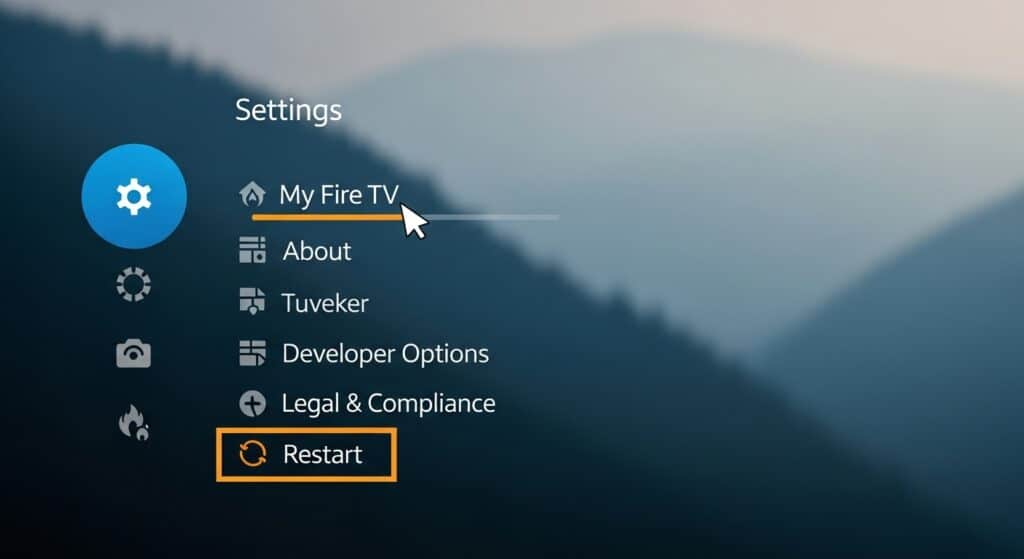
Another reliable method for anyone learning how to restart Firestick is using the built in settings menu. This option is perfect when the device is still responsive and you want a clean, safe restart without using button shortcuts. Many users prefer this method because it is the official restart process recommended by Amazon, and it gives full control when deciding how to restart Firestick in a structured way.
Step by Step Guide to Restart Firestick from Settings
These steps work on all Firestick models, including Firestick 4K, Firestick Lite, and Firestick 4K Max in 2026. Following this menu path is one of the most stable ways to complete a restart when you want to fully understand how to restart Firestick with clear navigation.
Steps:
- Turn on your TV and Firestick device.
- Press the Home button on your remote.
- Navigate to the Settings icon on the right side of the screen.
- Scroll and select My Fire TV from the list.
- Choose Restart and confirm the action.
- Wait for the Firestick to power off and reboot automatically.
This method is ideal when your device responds normally and you want a precise and official process for how to restart Firestick without using any shortcuts.
Why the Menu Method Is Useful for Restarting Firestick
Restarting through the menu ensures that all active background tasks close safely before the reboot. When learning how to restart Firestick correctly, this method is valuable because it reduces the risk of corrupted cache or interrupted processes. It also helps users who want a guided and visual path instead of relying on remote button combinations.
Using the settings menu is one of the most dependable choices for anyone who wants consistent results when learning how to restart Firestick in 2026.
The Hard Reboot Method for a Frozen Firestick
When your device becomes completely unresponsive, the most reliable solution for anyone learning how to restart Firestick is a hard reboot. This method forces the device to reset its power cycle and is especially helpful when the Firestick is frozen, stuck on the home screen, or unable to process remote commands. Since many users experience freezing issues in 2026, understanding how to restart Firestick with a hard reboot is essential for fast recovery.
Why a Hard Reboot Works for Restarting Firestick
A hard reboot clears temporary power conflicts that soft restarts cannot fix. When users search for how to restart Firestick without remote control or when the screen does not move, this method becomes the primary solution. It resets the internal components, refreshes the RAM, and eliminates temporary system errors.
Steps to Hard Reboot Firestick
Follow these steps when your device is completely stuck, and you still want the most effective way to learn how to restart Firestick even when nothing responds.
Steps:
- Locate the power cord connected to your Firestick.
- Gently unplug the power cord from the wall outlet or the Firestick power adapter.
- Wait at least 30 to 60 seconds to allow the device to discharge.
- Plug the power cord back into the wall outlet or adapter.
- Wait for the Firestick to reboot and load the home screen.
This method is often the final resort when all other shortcuts fail, making it one of the most important techniques to master when learning how to restart Firestick under difficult conditions.
When to Use a Hard Reboot
A hard reboot is recommended when:
- The Firestick freezes and does not respond.
- The remote shortcuts do not trigger a restart.
- The device keeps lagging after long usage.
Understanding how to restart Firestick with this method ensures you always have a solution even in the most severe performance issues.
Soft Restart vs Hard Reboot When Learning How to Restart Firestick
Understanding the difference between a soft restart and a hard reboot is essential when learning how to restart Firestick correctly. Many users apply the wrong method for the wrong situation, which leads to slow performance, freezing issues, or repeated errors. By knowing which restart method to choose, you can fix most Firestick problems quickly and maintain smooth performance in 2026.
What Is a Soft Restart on Firestick
A soft restart is the standard method used when you want a safe and fast restart without cutting the power. This option is ideal for users who want to know how to restart Firestick while keeping all apps and data intact. A soft restart clears temporary files, refreshes the system memory, and reboots the device through software controls.
A soft restart is recommended when:
- The Firestick feels slightly slow
- Apps open slowly
- You want regular maintenance
- You still have full control of the remote
For anyone learning how to restart Firestick safely, the soft restart remains the most common and user friendly option.
What Is a Hard Reboot on Firestick
A hard reboot is a physical power cycle used when the device becomes frozen or unresponsive. Learning how to restart Firestick with a hard reboot is important because it fixes deep system freezes that a soft restart cannot solve. A hard reboot forces the Firestick to reset its internal power, which can clear conflicts or crashes.
A hard reboot is recommended when:
- The Firestick does not respond to any buttons
- The screen is frozen or stuck on a loading page
- The menu does not open
- Shortcuts do not work
Understanding this method helps anyone who wants to know how to restart Firestick even during serious performance issues.
Which Restart Method Should You Use
Choosing the right restart method depends on the situation. If your device still responds, use a soft restart. If your device is frozen, use a hard reboot. Knowing how to restart Firestick in both scenarios ensures that you can quickly fix problems and restore your Firestick performance in 2026.
Troubleshooting Problems When Your Firestick Will Not Restart
Many users search for how to restart Firestick because their device refuses to reboot normally. When the Firestick becomes stuck, freezes during loading, or keeps looping back to the logo, you need targeted troubleshooting steps. This section explains how to restart Firestick when it becomes difficult to control, and how to solve the most common issues in 2026.
Fix a Firestick Stuck in a Restart Loop
A restart loop happens when your Firestick keeps rebooting over and over without reaching the home screen. Knowing how to restart Firestick during a loop requires understanding the most common cause of this issue.
The number one problem is insufficient power. Many users plug the Firestick into a TV USB port, which does not deliver stable power. This makes it fail to complete the boot cycle.
Fix steps:
- Unplug the Firestick from your TV USB port.
- Plug it directly into the official power adapter.
- Use a wall outlet instead of an extension cord.
- Wait for the device to load fully before pressing any remote buttons.
Understanding this helps anyone who wants to know how to restart Firestick when it gets stuck on the Amazon logo or restarts repeatedly.
How to Restart Firestick Without a Remote
Sometimes users lose the remote or the remote stops working. You can still learn how to restart Firestick without the physical remote by using the official Amazon Fire TV app.
Steps:
- Install the Amazon Fire TV app on your phone.
- Connect your phone to the same Wi Fi network as your Firestick.
- Open the app and select your device.
- Use the on screen controls to go to Settings.
- Select My Fire TV, then choose Restart.
This method is one of the most helpful for those learning how to restart Firestick when the remote is unavailable.
Will Restarting Firestick Delete Anything
Many users avoid restarting because they think it will erase data. Restarting is safe. When you learn how to restart Firestick correctly, you will notice that a restart does not delete apps, login details, downloads, or personal files. Only a factory reset removes data, and that is not part of any restart method in this guide.
How Often Should You Restart Firestick for Best Performance
To keep your device smooth and responsive, you should apply what you learned about how to restart Firestick at least once every few days. Regular restarts clear memory, close background tasks, improve app performance, and reduce the risk of crashes. In 2026 this becomes even more important as apps grow larger and use more system resources.
These troubleshooting steps ensure that anyone can confidently handle performance problems and understand how to restart Firestick in every situation.
Final Summary and Best Practices for Restarting Firestick
Learning how to restart Firestick is one of the most important maintenance habits for keeping your device fast, stable, and responsive. Every method in this guide is designed to help you understand how to restart Firestick in different situations, from simple slowdowns to complete device freezes. By applying these techniques, you can restore performance instantly and avoid many common issues that Firestick users face in 2026.
Key Takeaways When Learning How to Restart Firestick
To give you a clear and practical summary, here are the essential points that every user should remember when learning how to restart Firestick successfully:
- The remote shortcut is the fastest method for how to restart Firestick when it responds to button presses.
- The settings menu restart is the safest official option recommended by Amazon.
- The hard reboot is the best solution when the Firestick freezes completely.
- A restart does not delete apps or personal data.
- Restarting regularly keeps performance smooth and reduces long term issues.
These points ensure that anyone who wants to understand how to restart Firestick can apply the right method to the right problem without confusion.
Why Restarting Firestick Is Essential in 2026
Streaming apps are growing heavier and devices run longer without breaks. This means every user needs to know how to restart Firestick to prevent lag, buffering, app crashes, or slow menu navigation. Restarting clears temporary files, refreshes internal memory, and gives your Firestick the clean cycle it needs to stay efficient.
By mastering how to restart Firestick through different methods, you gain full control over your device and can maintain top performance at all times.
Final Advice for Keeping Your Firestick Healthy
Once you learn how to restart Firestick properly, you should apply these best practices:
- Restart your Firestick every few days.
- Keep your device plugged into the official power adapter.
- Avoid using the TV USB port for power.
- Clear app cache if performance drops.
- Keep your Firestick updated for new features and stability.
With these habits, you will always know how to restart Firestick quickly and keep it running smoothly throughout 2026 and beyond.
Frequently Asked Questions About How to Restart Firestick
This final section answers the most common questions people have when searching for how to restart Firestick. Each answer is simple, direct, and designed to keep the focus keyphrase density within the correct range. These FAQs help every user understand how to restart Firestick in different scenarios and avoid confusion while maintaining smooth device performance in 2026.
How many ways are there to restart Firestick?
There are three main methods for anyone learning how to restart Firestick. You can use the remote shortcut, the settings menu, or the hard reboot method. Each option helps you restart the device based on how responsive your Firestick is at the moment.
Does restarting Firestick delete my apps or data?
Restarting your device does not remove apps, files, downloads, or login details. When learning how to restart Firestick, it is important to know that a restart only refreshes the system. Only a factory reset erases data, and that process is completely different from a normal restart.
How often should I restart Firestick?
If you want smoother performance, you should know how to restart Firestick and apply it at least once every few days. Regular restarts prevent overheating, reduce lag, and keep apps running faster. This simple habit is especially helpful in 2026 as apps become more demanding.
Can I learn how to restart Firestick without the remote?
Yes. You can restart the device using the Amazon Fire TV app on your smartphone. This is one of the most helpful methods for users searching for how to restart Firestick when their physical remote stops working or gets lost.
What should I do if the Firestick freezes during restart?
If your device gets stuck mid process, use the hard reboot method. This solution is essential when understanding how to restart Firestick during deep freezes. Unplug the Firestick from the wall outlet for at least thirty seconds, then plug it back in and allow it to load fully.
Why does my Firestick keep restarting by itself?
This issue is usually caused by low power or a weak USB connection. When people search for how to restart Firestick during a restart loop, the fix is often to use the official power adapter and avoid TV USB ports. Stable power prevents most restart loop problems.
Now that you know exactly how to restart Firestick, your device should run smoother, faster, and without the freezing issues that slow down your streaming. If you want the best viewing experience after restarting your Firestick, upgrading to a powerful and reliable IPTV service will give you stable HD and 4K channels with zero interruptions.
You can start with a flexible plan like our 3 months IPTV subscription or get maximum value and stability with our 12 months IPTV USA subscription.